
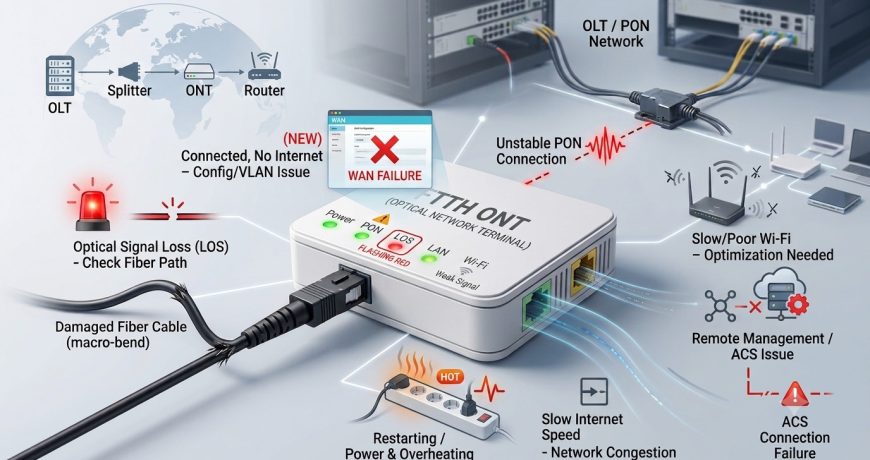
7 Common FTTH ONT Problems and How ISPs Can Fix Them Leave a comment
7 Common FTTH ONT Problems and How ISPs Can Fix Them
Introduction
FTTH ONT troubleshooting starts with understanding what the device actually does. An ONT (Optical Network Terminal) converts the optical signal arriving over fiber into the Ethernet and Wi-Fi connections a subscriber actually uses. In a GPON or XGS-PON network, the OLT (Optical Line Terminal) sends signal down a shared fiber path through splitters to every ONT on that PON port. Because customers see the ONT sitting in their home, it’s usually the first thing blamed when something goes wrong.
That assumption isn’t always accurate. FTTH ONT troubleshooting often reveals the ONT is working fine, and the real fault lies elsewhere — a damaged fiber run, a misconfigured VLAN, a weak Wi-Fi signal, or an authentication mismatch. Replacing hardware without confirming the root cause wastes stock and technician time, and the customer often calls back with the same complaint.
This guide covers the seven ONT problems ISPs run into most often, what typically causes each one, and how to work through them before reaching for a replacement.
1. LOS Light Blinking or Showing Red
LOS (Loss of Signal) means the ONT isn’t receiving usable light from the OLT. This points to a problem in the optical path — not automatically a faulty ONT.
Common causes: damaged or crushed fiber, loose or dirty connectors, excessive optical loss, bend loss (macro-bend), bad splices, or a fault in the splitter/distribution network.
Troubleshooting steps:
- Inspect the fiber run for kinks, pinches, or sharp bends.
- Confirm the connector is fully seated in the ONT’s port.
- Clean the connector end-face if contamination is possible.
- If everything looks clean at the ONT, trace the path back toward the splitter — this is a good point to check if fiber is damaged further along the route.
- If the cause still isn’t clear, measure Rx power with an optical power meter and compare it to your expected PON budget.
2. PON Light Is Not Becoming Stable
If LOS looks normal but the PON light won’t stabilize, the ONT is receiving signal but failing to register with the OLT — a serial number, authentication, or profile issue rather than a hardware fault.
Common causes: unregistered or incorrect serial number, SN/LOID authentication mismatch, wrong PON port/ONT ID provisioning, service/line profile mismatch, OLT-ONT vendor incompatibility, or outdated firmware.
Troubleshooting steps:
- Check the ONT’s registration status and confirm the serial number matches the installed unit.
- Verify LOID/password if used, and confirm the correct PON port and ONT ID.
- Review the assigned service/line profile against what the ONT expects.
- Check OLT-ONT compatibility, especially after a firmware update. Also verify that the OLT and ONT are operating within the supported optical budget and network design limits.
- Reboot the ONT and monitor whether it re-registers cleanly.
3. Internet Shows Connected but There Is No Internet
A customer can have a fully stable PON connection and still have no internet — optical connectivity, Wi-Fi, and actual internet reachability are three separate layers.
Common causes: VLAN mismatch, PPPoE authentication failure, DHCP/IP assignment issues, DNS problems, incorrect WAN settings, or a service profile not mapped to the right VLAN.
Troubleshooting steps:
- Confirm PON/registration is stable, then check WAN status and whether an IP address was assigned.
- Verify the VLAN ID on the ONT matches what’s provisioned on the OLT.
- If using PPPoE, check the session status — failed logins usually mean wrong credentials or an authentication issue upstream.
- For DHCP, confirm IP, subnet, and gateway were received.
- Test DNS separately — a valid IP with broken DNS still fails to browse.
4. Slow Wi-Fi or Poor Wi-Fi Coverage
Wi-Fi complaints are rarely ONT hardware issues. In most cases the fiber connection is fine, and the bottleneck is the wireless environment.
Common causes: poor router/ONT placement, walls and obstructions, interference, too many connected devices, staying on 2.4 GHz when 5 GHz would work better, or heavy bandwidth usage.
What to do: Run a wired LAN speed test first — if it matches the subscribed plan, the ONT and fiber are fine and the issue is wireless. From there: reposition the router centrally, manage the 2.4/5 GHz bands, check connected devices, and consider a mesh/extender for larger homes.
5. ONT Frequently Restarts or Disconnects
Common causes: unstable power supply, faulty/underpowered adapter, loose power connection, overheating from poor ventilation, or firmware bugs.
Troubleshooting steps:
- Check the power adapter’s voltage against the ONT’s rating.
- Inspect the power cable and connector for damage.
- Swap in a known-good compatible adapter to test.
- Check ventilation — sealed cabinets often cause overheating.
- Review event logs: reboots at fixed times usually mean power/thermal issues; random reboots suggest firmware instability.
Power and environment checks are quick and cheap — rule them out before replacing the unit.
6. Internet Speed Is Slow Even Though Devices Are Connected
Common causes: multiple active devices, weak Wi-Fi, local congestion, a bandwidth profile mismatch on the OLT, or peak-hour congestion upstream.
How to isolate it: Run a wired speed test. If it hits the subscribed speed, the fiber/ONT/OLT profile are fine and the slowdown is Wi-Fi or device-side. If the wired test is also slow, check the OLT service profile and look for PON port congestion during peak hours.
7. Remote Management or Configuration Issues
ACS (Auto Configuration Server) using TR-069 lets ISPs manage large ONT fleets remotely. When it breaks, technicians lose the ability to push updates or diagnostics without a truck roll.
Common causes: incorrect ACS parameters on the ONT, routing/firewall blocks preventing the ONT from reaching the server, firmware incompatibility, or inconsistent configuration profiles across device batches.
Troubleshooting steps: verify ACS URL/credentials on the ONT, confirm network-level reachability to the ACS server, check firmware compatibility, and standardize configuration profiles across ONT models to simplify future troubleshooting.
Effective remote ONT management can reduce unnecessary site visits and make routine configuration and troubleshooting easier for ISPs.
Quick FTTH ONT Troubleshooting Checklist
This checklist summarizes the FTTH ONT troubleshooting steps covered above, grouped by category so technicians can move through them quickly during a support call or field visit.
Physical & Optical: Power supply · PON/LOS status · Fiber condition · Connectors · Bends/damage · Optical power
Network & Configuration: Registration · SN/LOID auth · VLAN · Service profile · WAN status · IP assignment · PPPoE/DHCP · Wired test
Wi-Fi & Device: Wired vs. Wi-Fi test · Placement · Connected devices · Bandwidth usage · Firmware · ACS/remote management
Consider ONT replacement only after these causes have been reasonably ruled out.
Why Proper ONT Troubleshooting Matters for ISPs
- Fewer unnecessary ONT replacements
- Lower hardware costs
- Faster fault resolution
- Fewer unnecessary field visits
- Better technician productivity
- Lower operational costs
- Better customer experience
- Better network reliability
Conclusion
FTTH ONT problems can originate in the fiber path, the optical signal, OLT configuration, authentication, VLAN/PPPoE settings, DHCP/DNS, the Wi-Fi environment, power supply, firmware, or the remote management system. The reliable approach is simple: diagnose the root cause before replacing the ONT — which is the core principle behind effective FTTH ONT troubleshooting.
At Netlink ICT, we provide FTTH networking solutions, ONT devices, and network support for ISPs and network professionals. Understanding the root cause of an ONT issue is essential for reducing downtime, avoiding unnecessary hardware replacement, and maintaining a reliable customer experience.